

xvkbd(1)		     General Commands Manual			xvkbd(1)

NAME
     xvkbd - virtual keyboard for X window system

DESCRIPTION
     xvkbd  is	a virtual (graphical) keyboard program for X Window System which
     provides a facility to enter characters onto other  clients  (software)  by
     clicking  on a keyboard displayed on the screen.  This may be used for sys-
     tems without a hardware keyboard such as kiosk terminals  or  handheld  de-
     vices.   This  program  also has a facility to send characters specified as
     the command line option to another client.

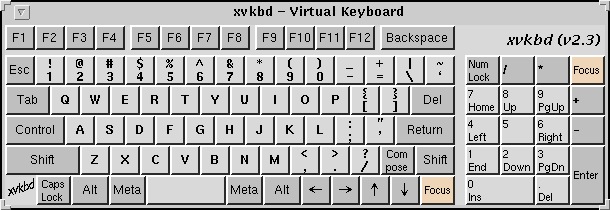
     The standard keyboard layout is based on the  traditional	US  layout,  but
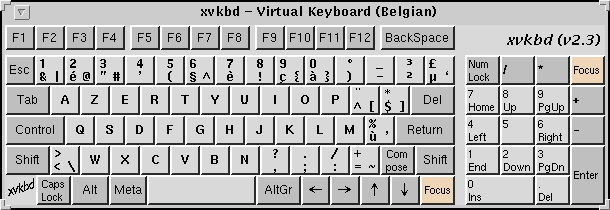
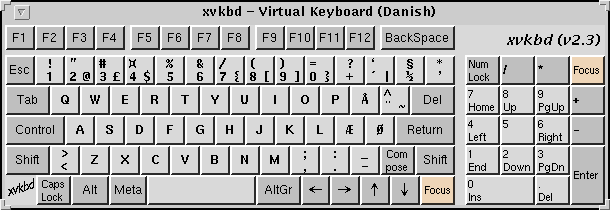
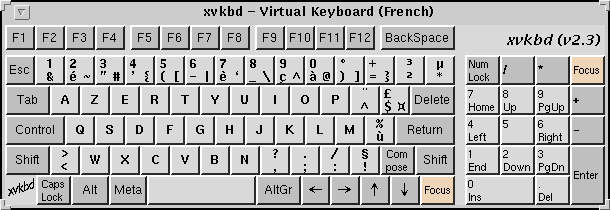
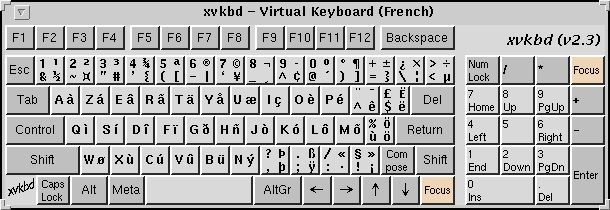
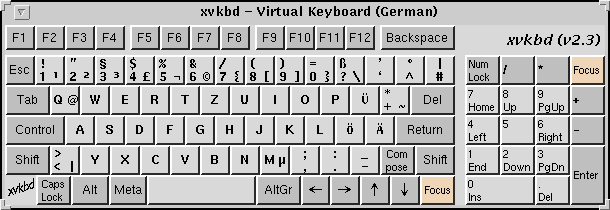
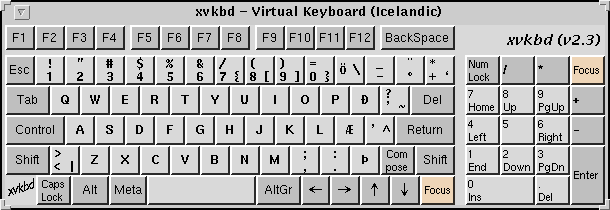
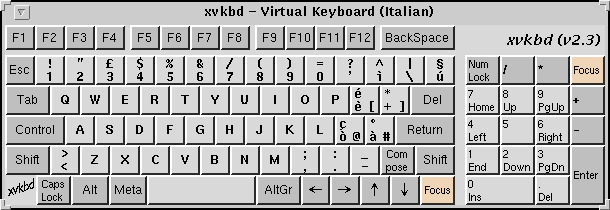
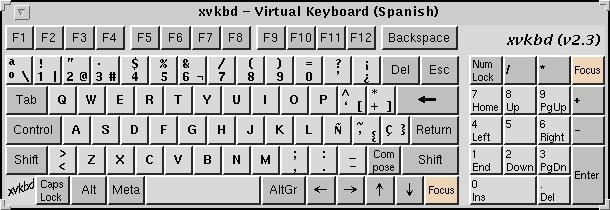
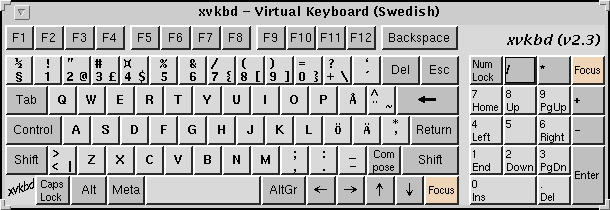
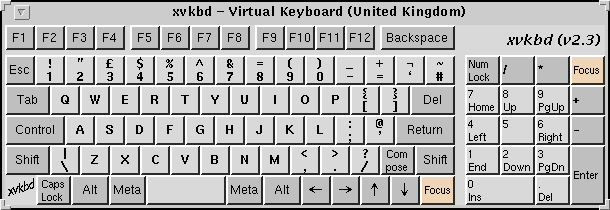
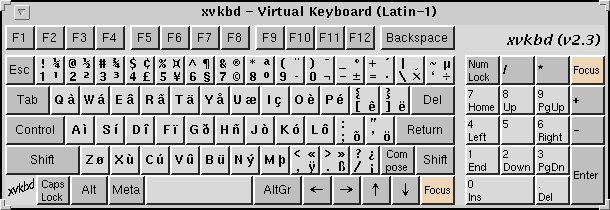
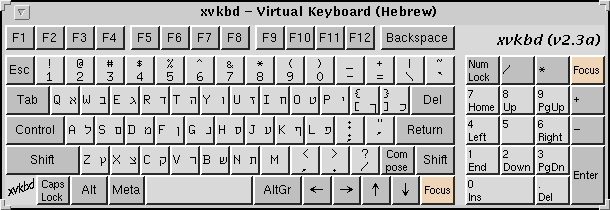
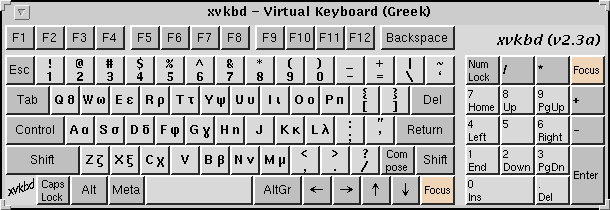
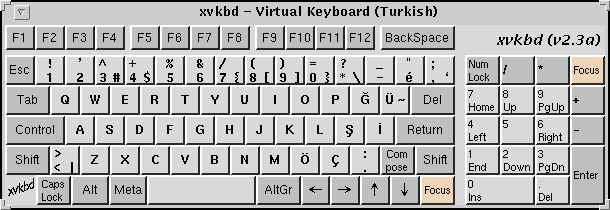
     some  other keyboard layout (see "Screenshot") are also supported.  The de-
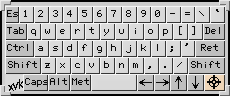
     fault window size may be too large for systems with small	screen,  but  it
     can  be  configured to use smaller space (220x90 pixels, for example).  For
     details, see also "Screenshot" and "How to Customize xvkbd" below, and  re-
     souce files in the distribution.

     xvkbd  version  2.1 and later support word completion and xvkbd version 4.0
     and later will now learns the used words for word completion  ,  which  may
     make it easier to enter long words with xvkbd.

     IMPORTANT NOTE: When invoking xvkbd from display managers such as XDM, GDM,
     etc.,  always  use xvkbd with -secure option or you will have serious secu-
     rity risk.

Environment
     xvkbd will work on X11R5 or X11R6.  It is tested on redhat  Linux	and  So-
     laris, and it will work also on most UNIX-like systems.

     This  program uses Xaw (use of Xaw3d is recommended) and no special library
     is required.

Operation
Input Keys
     When xvkbd is started, the image of a keyboard will  be  displayed  on  the
     screen.   Clicking  any  key on the xvkbd window will send the character to
     the focused window as if the key had been actually typed with the	hardware
     keyboard.

     If  you want to input upper-case alphabets or other characters on the upper
     position on the keyboard, you should click the key after selecting Shift by
     clicking it, or click the key with mouse button 3 (maybe right  button)  or
     mouse  button  4.	 In  the  similar manner, if you want to input Controled
     characters, you should click the key after clicking Control, or  click  the
     key with mouse button 2 (maybe middle button).  Alt and Meta can be used in
     the similar manner with Control, but there are no shortcuts with mouse but-
     tons.

``Quick Modifiers''
     xvkbd  2.5 and later support another way to input characters with modifiers
     such as Shift, Control, AltGr, etc., which may be useful especially for ma-
     chines with touch panels such as PDAs - we would call it "Quick Modifiers".

     Quick Modifiers can be enabled/disabled by the ``Enable "Quick Modifiers?''
     entry on the property panel.  If Quick Modifiers is enabled, it will be ac-
     tivated by pressing a key on the xvkbd window, move the pointer outside  of
     the key, and then release the mouse button or equivalent.

     The direction of the pointer motion will select the modifier:

	   up	     - Shift
	   right     - AltGr
	   right-up  - Shift AltGr
	   left      - Control
	   left-up   - Shift Control
	   down      - Meta
	   left-down - Alt

Setting Input Focus
     If you are using a window manager and clients where you can set input focus
     by  clicking mouse button on the window (and you don't have to keep pointer
     in the window after that), you can simply set input focus in the normal way
     and then click keys on the xvkbd window - the character will be sent to the
     selected position.

     If you are using a window manager	or  clients  where  you  must  keep  the
     pointer  in the input field to input from the keyboard, or if the input fo-
     cus is switched to the xvkbd window when you clicked  on  the  key  on  the
     xvkbd window, you must make xvkbd to set input focus explicitly by clicking
     the  Focus  button  on  the xvkbd window and then click on the input field.
     This input focus can be cleared by clicking Focus button with mouse  button
     3, or simply clicking Focus button twice.

Word Completion
     Choosing  ``Word  Completion...'' in the main menu will popup the Word Com-
     pletion panel.

     When you entered characters by clicked keys on the xvkbd  window  as  usual
     while  the  Word  Completion  panel open, words started with the characters
     will be listed in the panel, and you can enter the remaining characters  of
     the selected word by clicking one of the words in the list.

       When ``Integrate Completion Panel?'' on the property panel is set on,
       completion panel will be displayed on the main window when required.
       .PP The dictionary (list of words) file is /usr/share/xvkbd/words.english
     by  default,  but	it can be changed with Static Dictionary on the property
     panel.

       In  addition,  xvkbd  records  the  used  words	and  those   scores   in
     $HOME/.xvkbd.words.

Main Menu
     Pressing  the  ``xvkbd'' logo on the main keyboard (placed near left-bottom
     corner in the default configuration) will popup the main menu.

     The menu contains following items:

     About...
	 Show short description of this program.

     Manual...
	 Launch manual page reader.

     Keypad...
	 Open the Keypad panel.

     Sun Function Keys...
	 Open the Sun Function Keys panel.

     Dead Keys...
	 Open the Dead Keys panel which can be used to	enter  Latin  characters
	 with accent symbol in double stroke.

     Word Completion...
	 Open the Word Completion panel.

     Change Keyboard Layout...
	 Open a popup window to change the keyboard layout.  In the default con-
	 figuration,  Default  (US), Belgian, Danish, French, German, Icelandic,
	 Italian, Japanese (JIS-X-6002), Japanese (JIS-X-6004),  Korean,  Norwe-
	 gian, Portuguese, Russian, Spanish, Swedish, Swiss/German, United King-
	 dom and Latin-1 are available.

     Edit Function Keys...
	 Open a popup window to edit string assigned to function keys.	See also
	 "Assigning Text to Function Keys".

     Show Keypad?
	 Toggle show/hide of the keypad on the main window.

     Show Function Keys?
	 Toggle show/hide of the function keys on the main window.

     Property...
	 Popup the Property panel.

     Connect to Remote Display...
	 Open a panel to specify the name of a remote display (in the meaning of
	 the  X  Window System) to connect, so that following key events will be
	 sent to windows on the remote display.

     Revert to Local Display
	 Disconnect from the remote display so that following key events will be
	 sent to windows on the local display.

Property Panel
     Enable "Quick Modifiers"?
	 Toggle enable/disable of the Quick Modifiers feature.

     Lock Shift?
	 Toggle locking/momentary of Shift keys.

     Lock AltGr?
	 Toggle locking/momentary of AltGr key.

     Lock Control, Alt and Meta?
	 Toggle locking/momentary of Control, Alt and Meta keys.

     Always on Top?
	 If this entry is set ON, xvkbd attempts to keep the xvkbd window always
	 on the top of the display (i.e. not to be  hidden  by	other  windows).
	 This  feature is experimental, and care should be taken as this feature
	 can cause problem in some situations.

     Behave as Toolbar Window?
	 xvkbd attempts to be a toolbar window when it is used with some kind of
	 window managers such as Matchbox window manager.

     Use XTEST Extension?
	 XTEST extension will be used if this entry is checked.  If  this  entry
	 is set inactive, the X server does not support XTEST extension.

     Jump Pointer?
	 If  this  entry is set ON, xvkbd will temporary jump the pointer to the
	 focused window, if XTEST extension is to be used to  simulate	keyboard
	 events.

     Key-Click Sound
	 Set on/off and duration of key-click sound.

     Automatic Click
	 Set  on/off  of  the automatic click feature and the delay before auto-
	 matic click is activated.  If this feature is set, xvkbd will	work  as
	 if left mouse button is clicked when mouse pointer is moved on a button
	 and  stays  long  enough.   You may want to set Jump Pointer? to OFF to
	 avoid auto-repeating.

     Completion:

       Static Dictionary
	   Set the filename to be used for word completion.
	     This setting take precedence over the `xvkbd.dictFile' resource
	     and the -dict option.
	     Default: /usr/share/xvkbd/words.english

       Dynamic Dictionary Weight
	       This parameter controls "learning" of recently used words.
	     When this value is set 0, xvkbd will not learn used words.
	     With higher value setting, xvkbd will quickly
	     learn the used words and effectively ignores frequency information
	     in the Static Dictionary.
	     Default: 1.

       Insert Blank after Completion?"
	       If this button is set on,
	     xvkbd will insert blank (' ') automatically after word completion
	     if the next character is not blank nor punctuations.

       Integrate Completion Panel?"
	       If this button is set on,
	     word completion panel will be inegrated at top of the main window
	     and will be activated when required.

Options
     xvkbd accept following command line options, in addition to general options
     such as `-display'.

     -version
	 Display version information and exit.

     -xsendevent
	 Make xvkbd to use XSendEvent() to simulate keyboard events, as  it  was
	 in  xvkbd  version  1.0.   xvkbd  version 1.1 and later will try to use
	 XTEST extension instead in the default configuration.	 Because  it  is
	 not  unusual  applications  to  ignore  keyboard  events generated with
	 -xsendevent, you shouldn't use -xsendevent option unless it  is  really
	 required.
	 If  XTEST  extension is not supported by the X server, xvkbd will auto-
	 matically switch to this mode.
	 Resource `xvkbd.xtest: false' has the same function.

     -no-sync
	 Normally, xvkbd attempts to synchronize  with	the  destinating  client
	 step by step.	This can cause problem when the client (or the X server)
	 responded  too  slow.	In such situation, maybe this -no-sync can solve
	 the problem.
	 Resource `xvkbd.noSync: true' has the same function.

     -no-jump-pointer
	 Make xvkbd not to jump the pointer when sending  events.   In	the  de-
	 fault,  xvkbd will temporary jump the pointer to the focused window, if
	 input focus is set explicitly via Focus button, and XTEST extension  is
	 to be used to simulate keyboard events.
	 Resource `xvkbd.jumpPointer: false' has the same function.

     -no-back-pointer
	 Make  xvkbd not to jump the pointer back to the original position after
	 events has been sent.	Maybe this can be useful  when	using  xvkbd  to
	 move the pointer position.
	 Resource `xvkbd.jumpPointerBack: false' has the same function.

     -modal
	 Make  labels  on  keys  in the xvkbd window to be set independently for
	 each of four shift states, not shifted, Shift, AltGr  and  Shift-AltGr.
	 This is useful when you want to make the xvkbd window very small.
	 See also "Customizing Keyboard Layout" and resouce files in the distri-
	 bution.
	 Resource `xvkbd.modalKeytop: true' has the same function.

     -geometry	[widthxheight][+xoff+yoff]
	 Set window geometry (size and position).
	 You  can  use	form  like -geometry 400x130 to specify the window size,
	 -geometry +100+100 to specify the window position from left/top edge of
	 the screen, and -geometry 400x130+100+100 to specify both the size  and
	 the  position.   You can specify position from right/bottom edge of the
	 screen by using - instead of +, but please note that you must take  ac-
	 count	of size of the window border.  (If you specify `-geometry -0-0',
	 the window will not fit in the screen.)
	 This can be set by xvkbd.windowGeometry resource (note that it  is  not
	 xvkbd.geometry), too.

     -no-resize
	 Disable resize of the xvkbd window.
	 Resource `xvkbd.resizable: false' has the same function.

     -no-repeat
	 Do not auto-repeat even if key is depressed long time.
	 If  auto-repeat  is  enabled  (this  is the default), time before start
	 auto-repeat can be set as `xvkbd*Repeater.initialDelay: 600',	and  pe-
	 riod  of  repeat can be set as `xvkbd*Repeater.minimumDelay: 100' (unit
	 of there parameters are milli-seconds).
	 Resource `xvkbd.autoRepeat: false' has the same function.

     -no-functionkey
	 Do not display function keys.
	 Resource `xvkbd.functionkey: false' has the same function.

     -no-keypad
	 Do not display keypad.
	 Resource `xvkbd.keypad: false' has the same function.

     -compact
	 Do not display function keys nor keypad.
	 Resource `xvkbd.compact: true' has the same function.

     -keypad
	 Display only keypad.  This option will be ignored  if	`-no-keypad'  or
	 `-compact' is specified.
	 Resource `xvkbd.keypadOnly: true' has the same function.

     -text string
	 Send the string to the focused window (see also `-window' option).
	 If  this option is specified, xvkbd will not open its window and termi-
	 nate soon after sending the string.
	 The string can contain:

	 - \r - Return

	 - \t - Tab

	 - \b - Backspace

	 - \e - Escape

	 - \d - Delete

	 - \S - Shift (modify the next character; please note that  modify  with
	   ``\S''  will  be ignored in many cases.  For example, ``a\Cb\ScD\CE''
	   will be interpreted as a, Control-b, c, Shift-D,  and  Control-Shift-
	   E.)

	 - \C - Control (modify the next character)

	 - \A - Alt (modify the next character)

	 - \M - Meta (modify the next character)

	 - \W - Super (modify the next character)
	     .IP "    - " 6 \[keysym] - the keysym keysym (e.g., \[Left]), which
	   will be processed in the similar matter with other general characters

	 - \{keysym}  -  the  keysym  keysym  (e.g.,  \{Left}),  which	will  be
	   processed in more primitive matter and can also be used for	modofier
	   keys such as Control_L, Meta_L, etc.; also, \{+keysym} and \{+keysym}
	   will simulate press and release of the key, respectively

	 - \Ddigit - delay digit * 100 ms

	 - \xvalue - move mouse pointer (use "+" or "-" for relative motion)

	 - \yvalue - move mouse pointer (use "+" or "-" for relative motion)

	 - \mdigit - simulate click of the specified mouse button

     -file filename
	 Send the contents of the specified file to the focused window (see also
	 `-window'  option).   If ``-'' was specified as the filename, string to
	 be sent will be read from the standard input (stdin).
	 If this option is specified, xvkbd will not open its window and  termi-
	 nate soon after sending the string.

     -utf16
	 When  used  with -file option, make xvkbd to accept UTF16 characters in
	 the file.

     -delay value
	 Put value ms of delay for evey characters when sending characters  with
	 -text	or -file.  Maybe this is useful when problem arises when charac-
	 ters are entered too fast.
	 Resource `xvkbd.textDelay: value' has the same function.

     -window window
	 Specify the ID (hexadecimal value leaded with `0x', or decimal  value),
	 the  name  (instance name or class name) of the window, or the title of
	 the window to set input focus.  It is possible to use wildcard  charac-
	 ters `*' and `?'  to match the window name or the window title.
	 If  this  is not specified, xvkbd will use input focus under control of
	 the window manager, unless focus is specified explicitly via Focus but-
	 ton.  Even if this option is specified, you  can  set	input  focus  to
	 other windows using Focus button, or clear the input focus.
	 If  there  are  two  or more windows which have the name specified with
	 this option, the window which was found first will be selected.

     -widget widget-name
	 Specify the name of the widget to set the input  focus.   To  use  this
	 feature,  the	client	must support Editres protocol.	In general, this
	 option will be used with `-window' option.
	 If you want to set input focus to the widget foo.bar.zot, you can write
	 zot, bar.zot or foo.bar.zot as widget-name.  To  avoid  confusion,  the
	 widget-name should match with a single widget of the client.
	 For example,

	     xvkbd -window xarchie -widget searchText -text "\Ca\Ckabc\r"

	 will enter the string ``abc'' to the ``Search Term'' field of a xarchie
	 window.

     -remote-display display
	 Specify the display (in the meaning of the X Window System) to connect;
	   see also Connect to Remote Display....

     -true-keypad
	 If  this option is specified, xvkbd will attempt to use keysyms such as
	 XK_KP_1 instead of XK_1.
	 Resource `xvkbd.keypadKeysym: true' has the same function.

     -dict filename
	 Specify the default dictionary (list of words) file to be used for word
	 completion.  The `Completion Dictionary' filename set on  the	Property
	 panel takes precedence over this.
	 Resource `xvkbd.dictFile: filename' has the same function.
	 See also ``Making your own completion dictionary''.

     -minimizable
	 Make  xvkbd  window can be minimized (iconified) even if no window man-
	 ager is in use.  When this feature is enabled, small triangle	will  be
	 displayed at left ot the xvkbd main menu, and xvkbd window will be min-
	 imized when the triangle is clicked.
	 Resource `xvkbd.minimizable: true' has the same function.

     -secure
	 Disable  invocation  of external commands, including user assigned com-
	 mand and the online manual  reader.   Connection  to  another	displays
	 would	also be disabled.  This option may be useful when xvkbd is to be
	 run with some kind of privileges.
	 Resource `xvkbd.secure: true' has the same function.

     -nonexitable
	 Disable termination of the xvkbd program.  This option  may  be  useful
	 when xvkbd is to be run automatically for systems with no keyboards and
	 users should not terminate the xvkbd.
	 Resource `xvkbd.nonexitable: true' has the same function.

     -xdm
	 Same  as  -secure  -nonexitable.   When  xvkbd  is  to be run for login
	 screen, it would be suggested to use this option.

     -modifiers modifiers
	 Normally, xvkbd will activate modifiers (control,  shift,  etc.)   only
	 while	sending  characters.   If modifiers were specified with this op-
	 tion, the specified modifiers will be activated while corresponding key
	 on the xvkbd window is in active.  For example, you can specify  -modi-
	 fiers	shift,control,meta,alt	to  apply this for those four modifiers.
	 Maybe this can be useful when attempting to decorate the  mouse  opera-
	 tions	with the modifiers.  Please note that the modifiers will also be
	 applied when attempting to click on the xvkbd window and which can pre-
	 vent the correct operation in some situations.
	 Resource `xvkbd.positiveModifiers: modifiers...' has the same function.

     -debug
	 Make xvkbd to output debug  information.   It	also  disables	keyboard
	 width	adjustment, to help adjusting key size when making keyboard lay-
	 out file.  It also make xvkbd to accept  signals  SIGINT  and	SIGQUIT,
	 which otherwise be ignored.

     -version
	 Output version information and exit.

Screenshot
     Default (US)
	 http://t-sato.in.coocan.jp/xvkbd/xvkbd-normal.gif

     Belgian
	 http://t-sato.in.coocan.jp/xvkbd/xvkbd-belgian.gif

     Danish
	 http://t-sato.in.coocan.jp/xvkbd/xvkbd-danish.gif

     French
	 http://t-sato.in.coocan.jp/xvkbd/xvkbd-french.gif
	 http://t-sato.in.coocan.jp/xvkbd/xvkbd-french2.gif

     German
	 http://t-sato.in.coocan.jp/xvkbd/xvkbd-german.gif

     Icelandic
	 http://t-sato.in.coocan.jp/xvkbd/xvkbd-icelandic.gif

     Italian
	 http://t-sato.in.coocan.jp/xvkbd/xvkbd-italian.gif

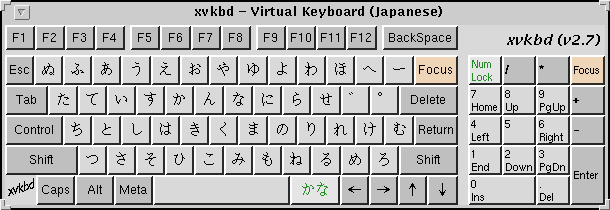
     Japanese (JIS-X-6002)
	 http://t-sato.in.coocan.jp/xvkbd/xvkbd-jisx6002.gif

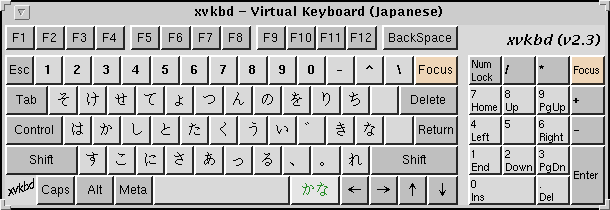
     Japanese (JIS-X-6004)
	 http://t-sato.in.coocan.jp/xvkbd/xvkbd-jisx6004.gif

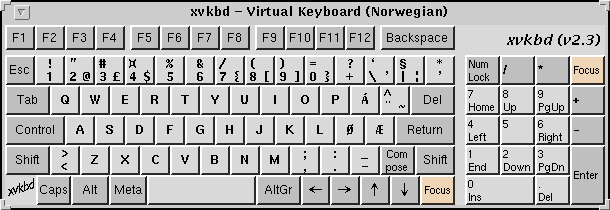
     Norwegian
	 http://t-sato.in.coocan.jp/xvkbd/xvkbd-norwegian.gif

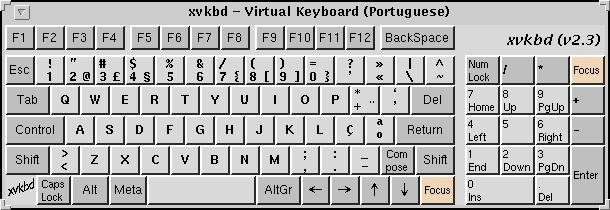
     Portuguese
	 http://t-sato.in.coocan.jp/xvkbd/xvkbd-portuguese.gif

     Spanish
	 http://t-sato.in.coocan.jp/xvkbd/xvkbd-spanish.gif

     Swedish
	 http://t-sato.in.coocan.jp/xvkbd/xvkbd-swedish.gif

     Swiss/German
	 http://t-sato.in.coocan.jp/xvkbd/xvkbd-swissgerman.gif

     United Kingdom
	 http://t-sato.in.coocan.jp/xvkbd/xvkbd-uk.gif

     Latin-1
	 http://t-sato.in.coocan.jp/xvkbd/xvkbd-latin1.gif

     Small Keyboard (maybe suitable for PDAs)
	 http://t-sato.in.coocan.jp/xvkbd/xvkbd-small.gif

     Hebrew
	 http://t-sato.in.coocan.jp/xvkbd/xvkbd-hebrew.gif

     Greek
	 http://t-sato.in.coocan.jp/xvkbd/xvkbd-greek.gif

     Turkish
	 http://t-sato.in.coocan.jp/xvkbd/xvkbd-turkish.gif

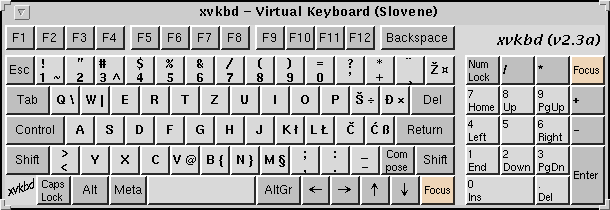
     Slovene
	 http://t-sato.in.coocan.jp/xvkbd/xvkbd-slovene.gif

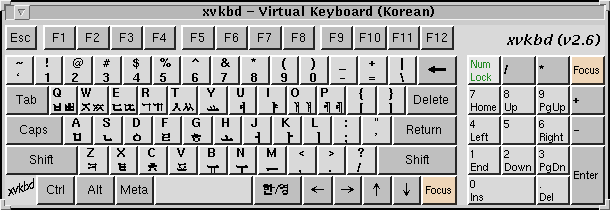
     Korean
	 http://t-sato.in.coocan.jp/xvkbd/xvkbd-korean.gif

     Russian (Cyrillic)
	 http://t-sato.in.coocan.jp/xvkbd/xvkbd-russian.gif

Download
     Latest Official Release

	 http://t-sato.in.coocan.jp/xvkbd/xvkbd-4.1.tar.gz
	 - source of version 4.1 (2020-05-04)

     previous release
	 http://t-sato.in.coocan.jp/xvkbd/xvkbd-4.0.tar.gz
	 - source of version 4.0 (2010-09-31)
	 http://t-sato.in.coocan.jp/xvkbd/xvkbd-3.9.tar.gz
	 - source of version 3.9 (2018-02-25)
	 http://t-sato.in.coocan.jp/xvkbd/xvkbd-3.8.tar.gz
	 - source of version 3.8 (2017-06-06)
	 http://t-sato.in.coocan.jp/xvkbd/xvkbd-3.7.tar.gz
	 - source of version 3.7 (2015-09-12)

     xvkbd is distributed under the terms of the GNU General Public License.

Install
xmkmf
       o untar the source in a directory, and move to the directory

       o If you wish to use genuine Xaw instead of Xaw3d, edit Imakefile and re-
	 move (or comment-out) `#define XAW3D'.
	 When  you  are  installing xvkbd (for example) in very old systems, you
	 may also want to remove `#define XTEST' and `#define I18N'  to  disable
	 XTEST and internationalization facility respectively.

       o Run: xmkmf; make install install.man

configure
     Alternatively, maybe you can:

       o untar the source in a directory, and move to the directory

       o Run: ./configure; make; make install

Customization
How to Customize xvkbd
     Some  degree  of  customization  of xvkbd is possible by setting resources.
     Some resources are already described above, and  resources  to  customizing
     keyboard layout are described below.

     To set resources, you can:

       o put them in your $HOME/.Xdefaults file, or

       o load them via xrdb(1), or

       o set the filename to the $XENVIRONMENT environment variable, or

       o put them in application default directory as `XVkbd-suffix' and set re-
	 source ``xvkbd.customization: -suffix'', or

       o put them in application default directory as XVkbd.

     Here, application default directory can be either of:

       o directories  specified  with  $XUSERFILESEACHPATH, $XAPPLRESDIR or else
	 $HOME environment variable

       o system's application default directory specified  with  $XFILESEACHPATH
	 environment  variable,  or  else the directory specified when compiling
	 the X (e.g., /usr/lib/X11/app-defaults)

     When the application default file is to be stored in the system's	applica-
     tion  default  directory, the file must contain ``#include "XVkbd-common"''
     near top of the file.

     xvkbd is distributed with some application default files, and they will  be
     installed in the system's application default directory.

Making Window Small
     Size  (and  position)  of xvkbd window can be set by `xvkbd.windowGeometry'
     resource.	When making window small, you may need	to  choose  the  smaller
     font, too.

	   xvkbd.windowGeometry: 220x90
	   xvkbd.compact: true
	   xvkbd*Font: 6x12

     You may also want to set:

	   xvkbd.modalKeytop: true

     to  display  only the labels for the current shift state, instead of trying
     to always display all of them in the small keytop.

     See also XVkbd-small.ad in the xvkbd distribution.

Removing Unwanted Keys
     Keys on xvkbd window can be removed by setting their width to 1.	The  re-
     source  name of the keys that start with a capital letter (and of the space
     key) is the same as the key itself, the others are of the form  <row>,<col>
     (counting from zero).

     To remove Compose key and make Shift key larger, you can write:

	   xvkbd*Multi_key.width: 1
	   xvkbd*Shift_R.width: 75

     To remove right Alt and Meta key, you can write:

	   xvkbd*Alt_R.width: 1
	   xvkbd*Meta_R.width: 1

Customizing Keyboard Layout
     Layout  of  keys  on  the xvkbd window can be customized with following re-
     sources:

     xvkbd.NormalKeys
	 list of keys available when neighter of Shift and AltGr are selected

     xvkbd.ShiftKeys
	 list of keys available when Shift is selected

     xvkbd.AltgrKeys
	 list of keys available when AltGr is selected

     xvkbd.ShiftAltgrKeys
	 list of keys available when both AltGr and Shift are selected

     xvkbd.KeyLabels
	 list of labels displayed on the keys

     xvkbd.NormalKeyLabels
	 list of labels displayed on the keys
	   when neither of Shift and AltGr are selected.

     xvkbd.ShiftKeyLabels
	 list of labels displayed on the keys
	   when Shift is selected

     xvkbd.AltgrKeyLabels
	 list of labels displayed on the keys
	   when AltGr is selected

     xvkbd.ShiftAltgrKeyLabels
	 list of labels displayed on the keys
	   when both AltGr and Shift are selected

     Four  resources  to  set  labels  on   the   keys	 (xvkbd.NormalKeyLabels,
     xvkbd.ShiftKeyLabels,  xvkbd.AltgrKeyLabels  and xvkbd.ShiftAltgrKeyLabels)
     will be used instead of xvkbd.KeyLabels when xvkbd.modalKeytop resoruce  is
     set true.

     In  all  of those resources, each keys are separated by spaces, and rows of
     keys are terminated with ` \n\' (note that `\n' must have space before it).
     Please refer XVkbd-german.ad and XVkbd-latin1.ad in the xvkbd  distribution
     for more about these resources.

     XVkbd-german and XVkbd-latin1 will be installed in the system's application
     default  directory,  and  setting the resource ``xvkbd.customization: -ger-
     man'' will make xvkbd to use the German layout.  For another method to  ac-
     tivate those settings, please refer "How to Customize xvkbd" above.

Assigning Text to Function Keys
     Text  can	be  assigned to each function keys (and, actually, to most other
     keys).  If text is assigned to the function key, clicking on the  key  will
     send the assigned text instead of the function key itself.  When pointer is
     on a key where text is assigned, the text will be displayed near the key.

     The  setting  will  be  read  from a text file which contains text for each
     function keys as:

	   F1 text for F1
	   F2 text for F2
	   s:F1 text for Shift-F1
	   c:F1 text for Control-F1
	   m:F1 text for Meta-F1
	   a:F1 text for Alt-F1
	   ...

     `s:', `c:', `m:' and `a:' before the keys	name  indicates  four  modifiers
     (Shift, Control, Meta and Alt) respectively.

     If  the  first  character of the assigned string is `!', the string will be
     used as command to be executed when the key is clicked.  To  assign  string
     starting with `!' or `\', put `\' before the string.

     The  file	is $HOME/.xvkbd in default, and it can be changed by setting the
     filename with xvkbd.keyFile resource.

     For F1 to F12 with or without Shift modifier, it is possible  to  edit  the
     assigned  string  on  a  panel popped up via "Edit Function Keys..." in the
     main menu.

Miscellaneous Informations
Notes
       o On XFree86, resolution switch with Ctrl + Alt + Keypad-Plus and Ctrl  +
	 Alt  +  Keypad-Minus may be simulated.  However, Ctrl + Alt + Backspace
	 will not be simulated.

       o Shift is used to decide key to be sent and it will not used to set mod-
	 ifier bit when sending the event.  You can use  xev  command  to  check
	 what is actually sent.

       o If  Alt  or  Meta  is not defined as modifier, the key can't be used as
	 modifier.  You can use `xmodmap -pm' to check	how  modifiers	are  de-
	 fined.

       o Num  Lock  (and maybe other modifiers) on the physical keyboard may not
	 work correctly when xvkbd is in use.

Additional Informations
     ChangeLog
	 http://t-sato.in.coocan.jp/xvkbd/ChangeLog

     FAQ - Possible Problems and Solutions
	 http://t-sato.in.coocan.jp/xvkbd/faq.html

     Hints to use xvkbd -text
	 http://t-sato.in.coocan.jp/xvkbd/xvkbd-text.html

     Note about how to send key events
	 http://t-sato.in.coocan.jp/xvkbd/events.html

Author
     xvkbd was written by Tom Sato, and it is distributed under the terms of the
     GNU General Public License Version 2 or any later version.

     Please send any feedback (such as bug reports, requests or comments) to Tom
     Sato <VEF00200@nifty.com>.

     The latest version of this software and more information about  it  may  be
     available at http://t-sato.in.coocan.jp/xvkbd/.

				   2019-09-01				xvkbd(1)


NAME | DESCRIPTION | Environment | Operation | Input Keys | ``Quick Modifiers'' | Setting Input Focus | Word Completion | Main Menu | Property Panel | Options | Screenshot | Download | Install | xmkmf | configure | Customization | Making Window Small | Removing Unwanted Keys | Customizing Keyboard Layout | Assigning Text to Function Keys | Miscellaneous Informations | Notes | Additional Informations | Author
Want to link to this manual page? Use this URL:
<https://man.FreeBSD.org/cgi/man.cgi?query=xvkbd&sektion=1&manpath=FreeBSD+Ports+15.1.quarterly>